 By
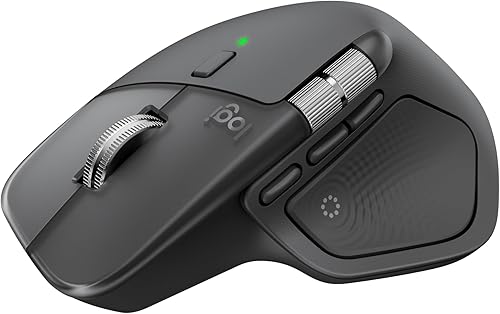
By When I first pick up the Logitech MX Master 4, I’m amazed at how well it fits in my hand. With a slope that lets the thumb drop onto the buttons and the wrist rest naturally, its form is ideal. I’ve been irritated by many other versions of mice, but this one feels long enough to prevent your fingertips from striking the touch buttons. The MX Master 4 is about comfort, accuracy, and finishing tasks—not about speed or RGB lighting.
The materials feel high-end, the surface is sturdy, and there are hardly any clicking noises. It takes some getting used to, but the incredibly sensitive and silent right and left buttons are ideal in open-plan office settings. After a few days of use, I soon recognize that my initial pressure is too light, yet everything feels natural.
On the other hand, the weight is apparent. Although the mouse feels sturdy since it is weighty, moving quickly makes it sluggish. This isn’t a huge drawback for me, since I work primarily with editing and office software, but I feel like this mouse isn’t the best for playing first-person shooter games after trying to play a few rounds.
Scroll wheel and control
What a fantastic magnetic scroll wheel! You can alternate between free scrolling that rotates endlessly and separate incremental scrolling. It’s useful, particularly when I’m looking through picture archives or working on lengthy documents. However, there is a minor disadvantage: when traveling at high speeds, the wheel may feel a little loose, as if it were briefly living on its own. In daily use, this is inconspicuous, but when the tempo increases, it becomes apparent.
The horizontal scroll is an additional scroll wheel located beneath the thumb. Although it took a few days to get used to, it’s quite useful when working with large whiteboard apps like Miro, timelines in movie production, or Excel.
One new feature is the gesture button, which allows you to give the mouse specific functions by holding it down and moving the mouse in various directions. Although it seems smart in theory, I seldom ever use it in real life. Using keyboard shortcuts is usually quicker than remembering which keystrokes do what.
Software
Logitech’s Logi Options program is used for all customisation. There, you may define what each key should do in various programs and change the brightness, scroll resistance, and haptics. The thumb buttons are set to “undo” and “ready” by default, and it functions flawlessly for commands particular to a given app.
Instead of free automation, the software is heavily focused on workflows in particular programs. It feels a little constrained to me, who prefers to personalize everything to my own shortcuts. Unfortunately, there is limited functionality even though you can write your own sequences or create longer command chains.
User experience
The MX Master 4 continues to be a joy to use in real life. The sensor responds instantly, is incredibly accurate, and can be used on nearly any surface, even glass. I particularly like how fluid it feels over time—steady precision without lag or jerks.
Impressive battery life is another feature. I have plenty of energy remaining after using it every day for a few weeks, and USB-C charging is speedy. One feature that many manufacturers still lack is the ability to use the mouse while it charges, which I like.
The polling speed is the only thing that irritates me a little. It feels less responsive than a true gaming mouse at 125 Hz, which is apparent when I try to spin fast or aim precisely in games. However, once more, the purpose of this is not to be a gaming mouse.